Buddy robotics Buddy robotics

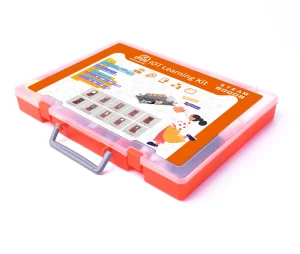
Weeemake Students Lot Learning Kit Smart Programming Stem Educational Esp32 Kits for Arduino

Still deciding? Get samples of $ !
Order Sample

Product Description

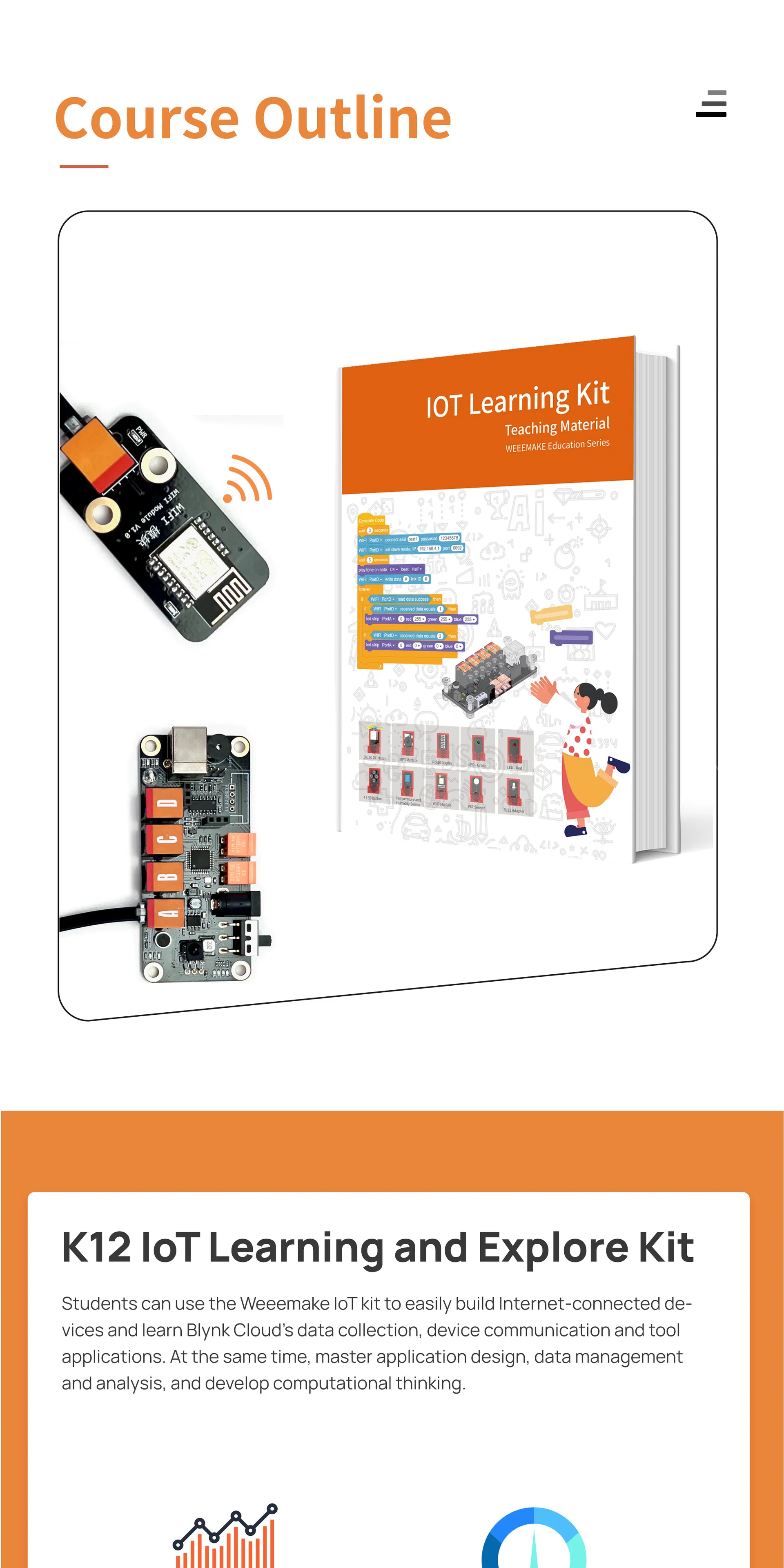
IoT Learning Kit Banner
Basic Information
Model NO.
161051
Age Range
All Ages
Application
Education Programming
Type
Educational Learning Kit
Series
Ai X IoT Education
Software
Weeecode
Origin
China
HS Code
90230090
Product Description

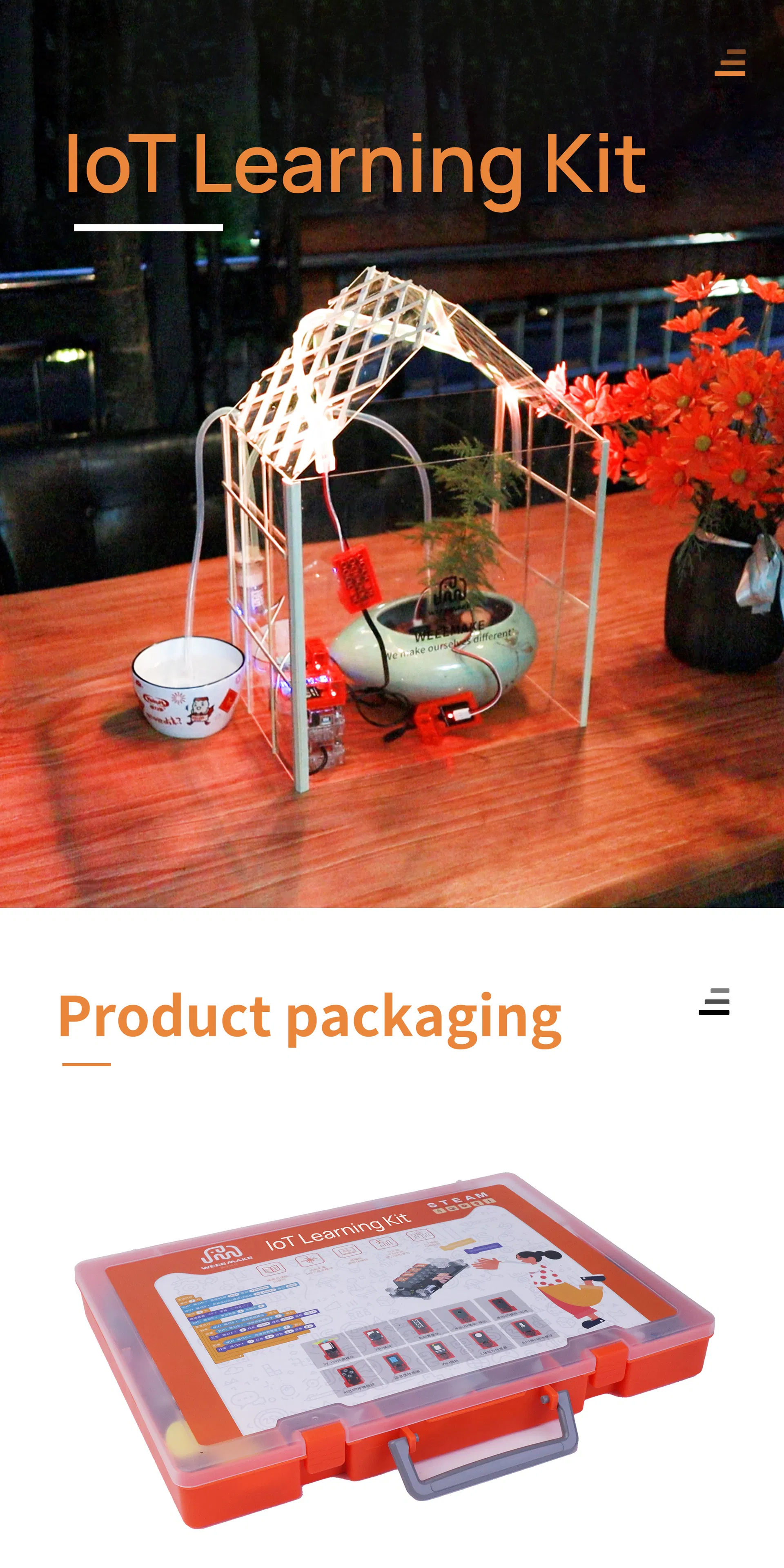
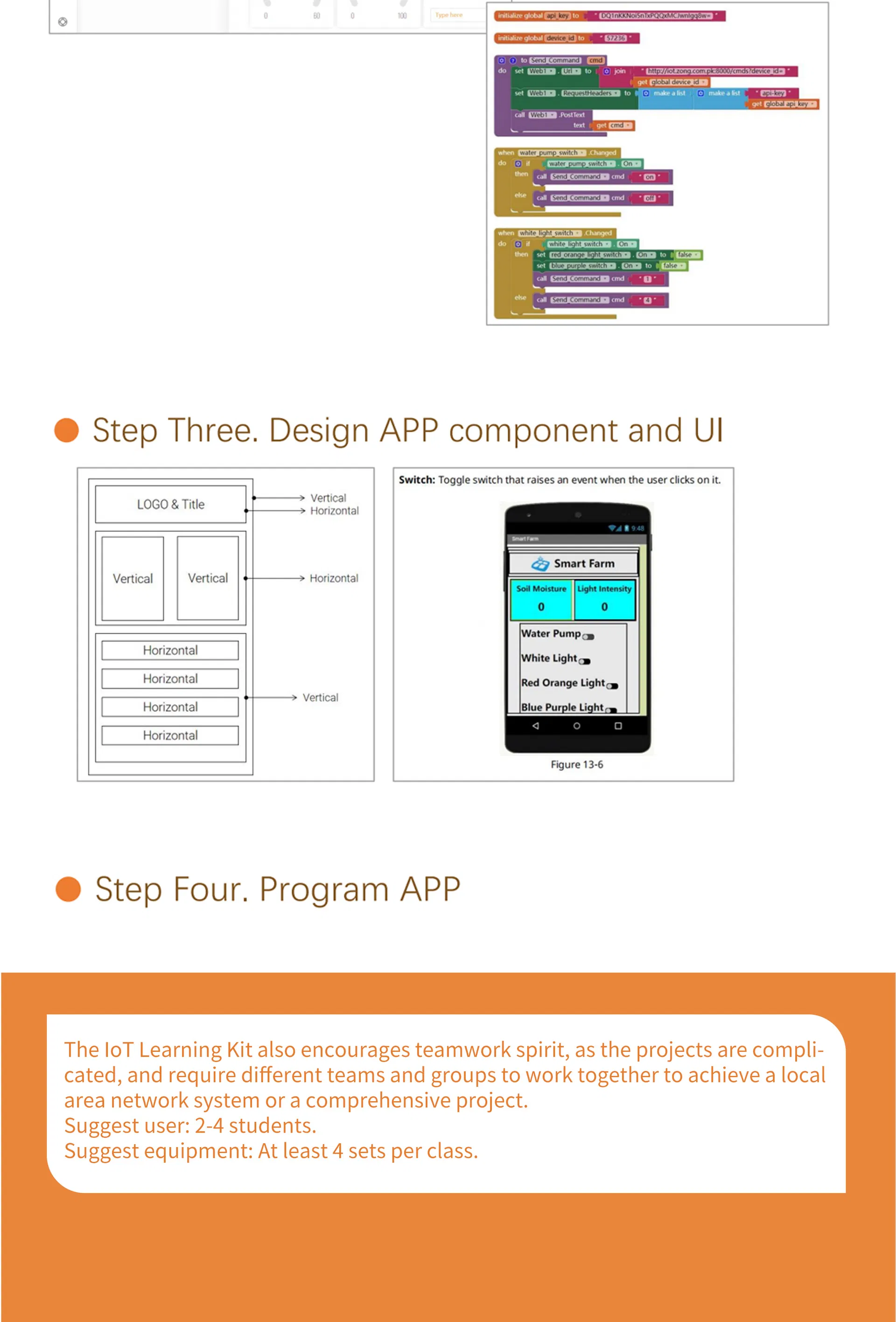
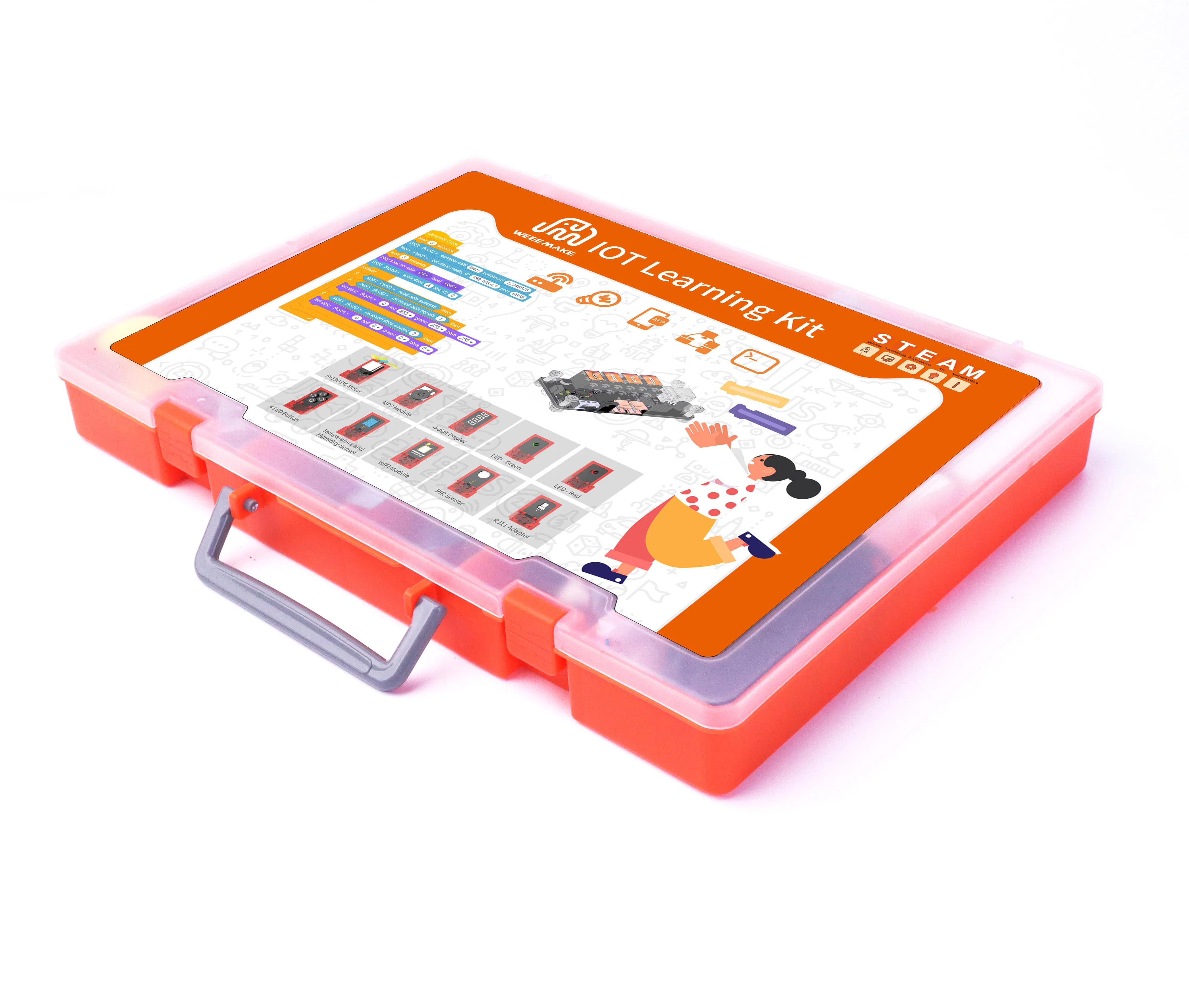
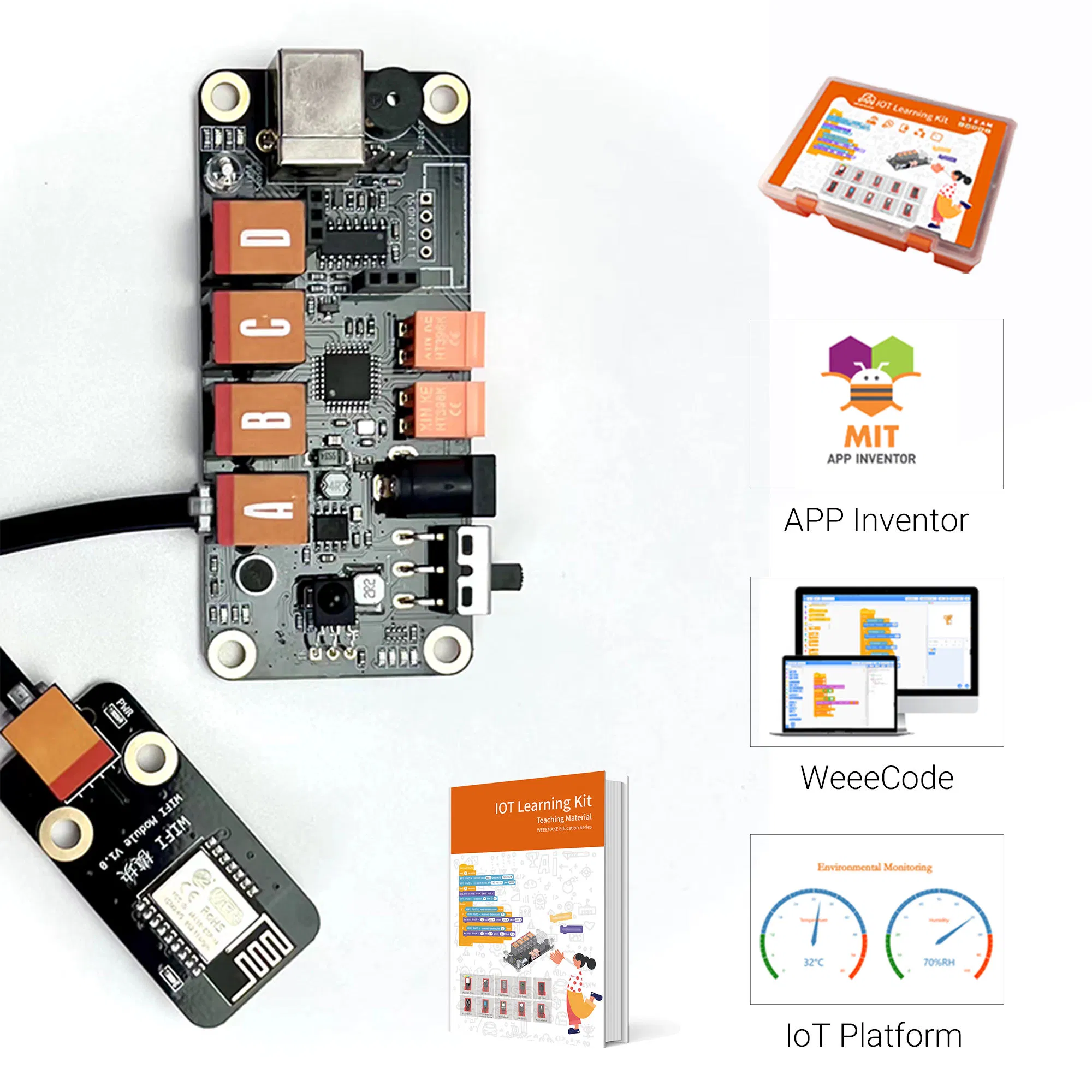
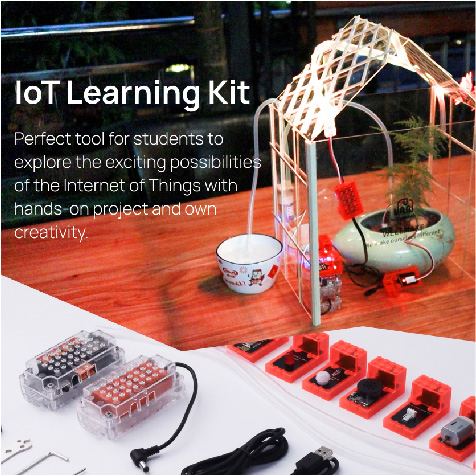
IoT Learning Kit is an advanced STEAM education kit designed to explore the Internet of Things. It allows students to gain hands-on experience by creating simulated smart home and smart farm projects.
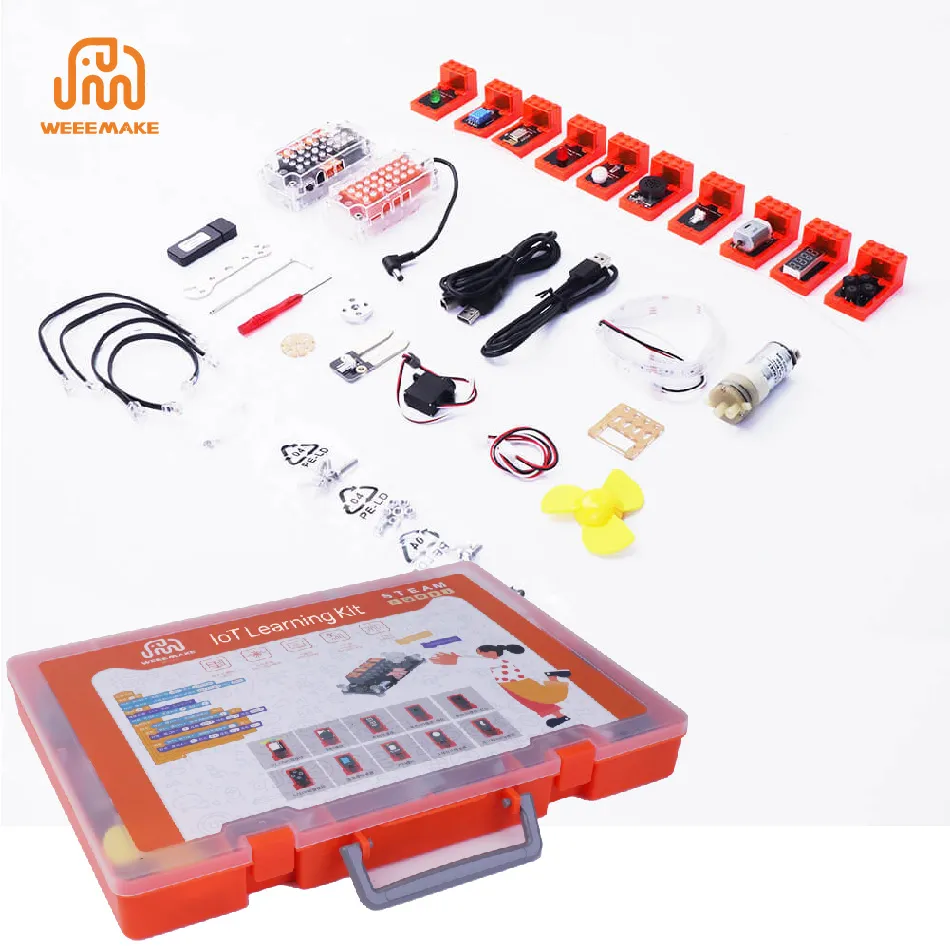
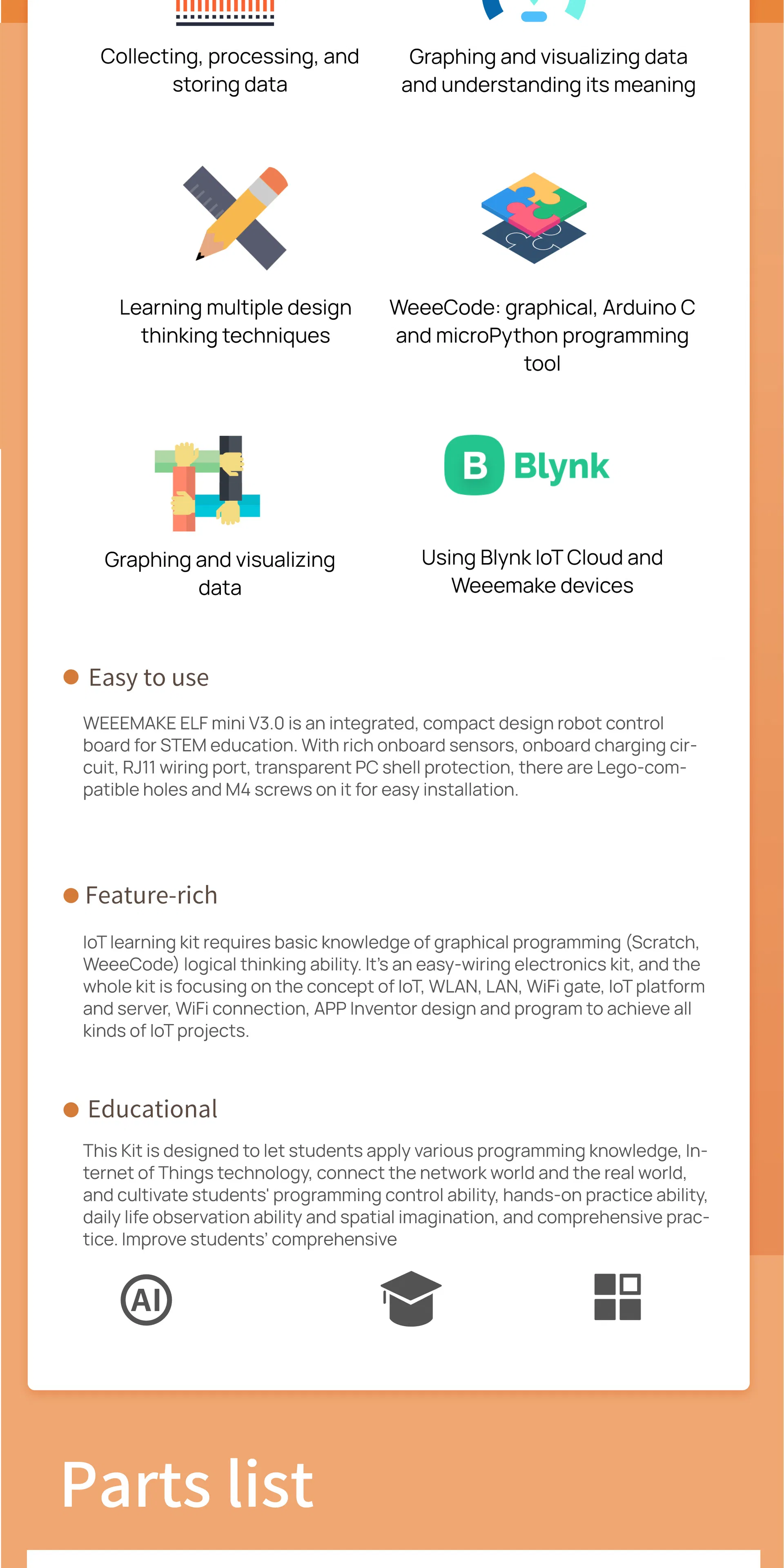
  • 14 chapters of structured teaching material with step-by-step guides.
  • Rich sensors and platforms for hardware programming.
  • Teaches IoT server setup and APP inventor programming from scratch.
  • Focuses on WLAN, LAN, WiFi gateways, and IoT platforms.
IoT Kit Product
Technical Specification
Item Parameter
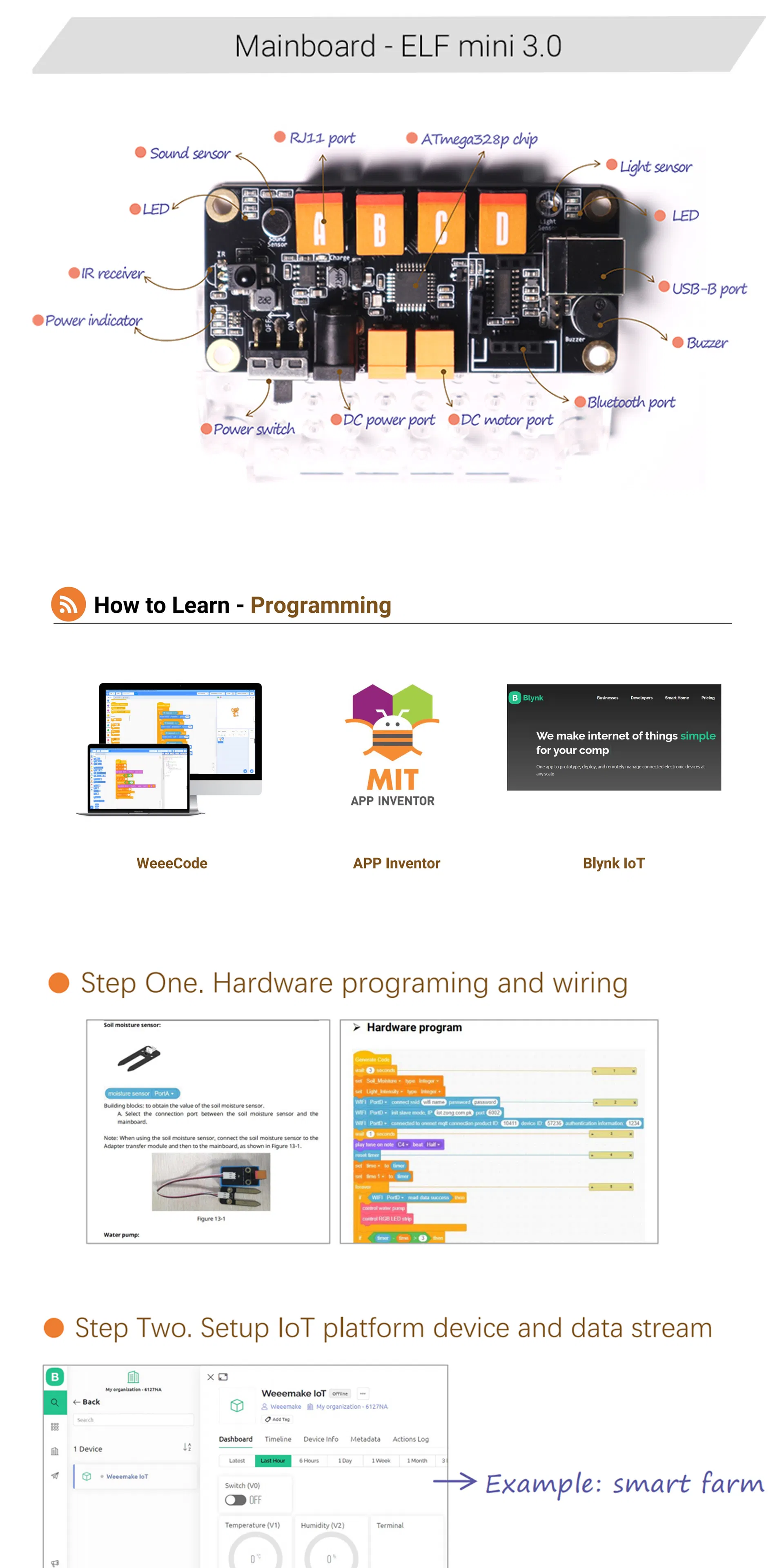
ControllerELF mini V3.0
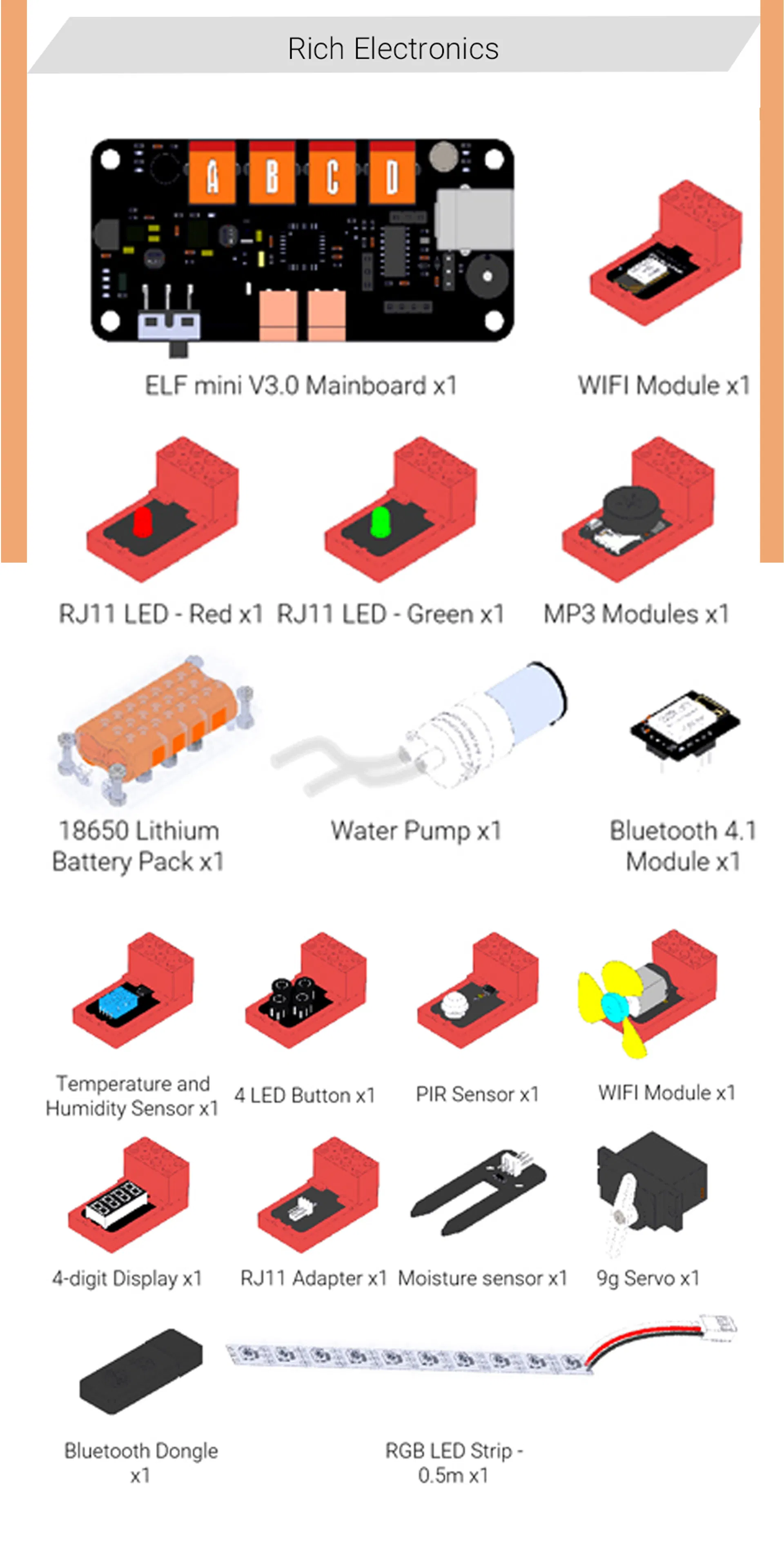
Onboard ElectronicsLight Sensor, Sound Sensor, IR Receiver, Buzzer, Red/Yellow LED, Power Indicator
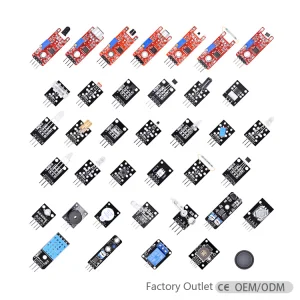
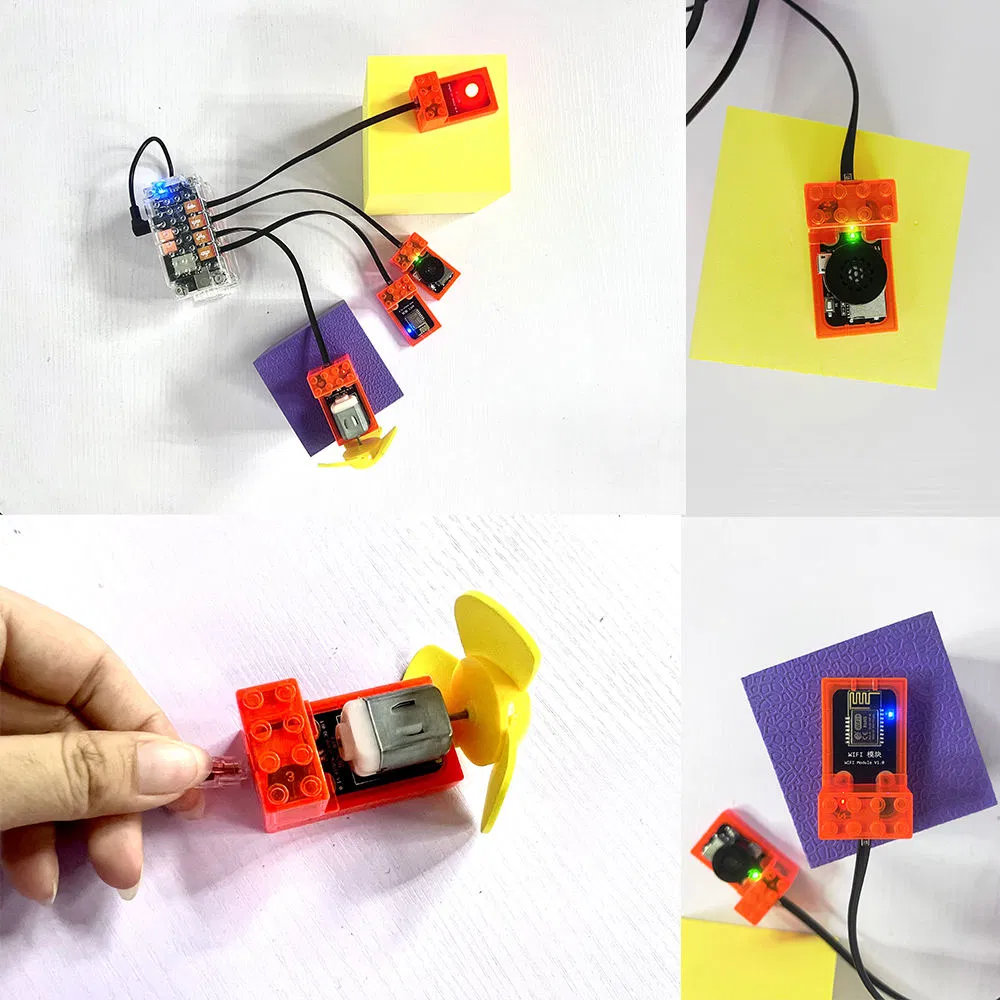
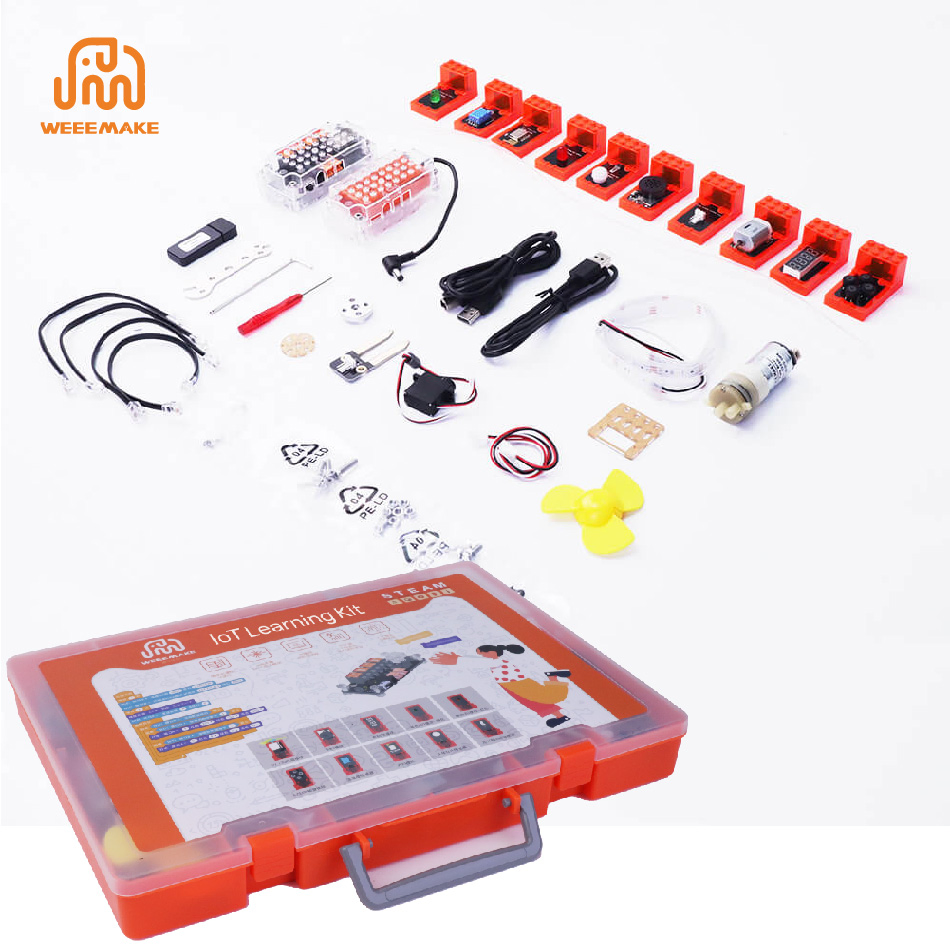
External ElectronicsWiFi Module, PIR Sensor, Moisture Sensor, Temp & Humidity Sensor, RJ11 LED, 4-digit Display, MP3 Module, RGB Strip
CommunicationUSB port, Bluetooth 4.1, 2.4G Wireless
Motor Drive2 ways (M1, M2)
Motors includedWater pump motor, Servo motor, 5V 130 motor
Size365 x 287 x 45 mm
Weight1230 g
Detailed Gallery
Feature 1 Feature 2
Feature 3 Feature 4
Feature 5 Feature 6
Certifications & Exhibition
Certifications Quality Control Global Exhibition
Frequently Asked Questions
The robot has no response after turning it on. Why?
Check for low voltage and recharge or replace batteries. Ensure batteries are installed in the correct polarity (+/-) and check for any incorrect wiring on the battery holder or motor.
The robot moves backwards when commanded forward. How to fix?
The wiring of the motor is likely reversed. Please reconnect the motor wires in the opposite orientation to correct the movement direction.
How do I program the robot or restore factory settings?
Download the compatible software, connect the robot to your PC via USB, and select the correct serial port. Use "Factory Firmware" to resume default settings or "Online Firmware" for live testing.
Why can't the robot move when connected only via USB?
USB power supply only supports the mainboard chips and sensors. To drive high-power components like motors or servos, you must connect batteries and switch on the main power button.
Why isn't the Line-following Sensor working correctly?
Ensure the sensor is 1-2cm from the map. Avoid using it under strong light which interferes with infrared signals, and ensure the map material is non-reflective.
The software cannot read sensor values. What should I check?
Check your wiring and ensure the sensors are physically connected to the exact same ports defined in your software program.

Related Products